Quick answer
- A live view on your phone does not prove that footage is being saved
- Once a month, play back a clip from a few days ago on every camera, not just today's view
- Check the recorder's date and time, the storage status and the oldest recording available
- Look at the lenses, the cables and the power supply, since many failures start there
- Write down what you find, and ask your installer about anything that looks wrong
Why a live view is not enough
Most people check their CCTV by opening the app and looking at the picture. If the picture appears, they assume all is well. But a live picture only shows that the camera is working right now. It does not show that the recorder is saving video, that the disk has space, or that last week's footage can still be found.
Many people discover a problem only when they need the footage after an incident. By then it is too late. A simple monthly check takes about half an hour and can catch most problems early. This guide explains what to check, in plain words, for a home, apartment or office in Bengaluru.
Check 1: play back old footage on every camera
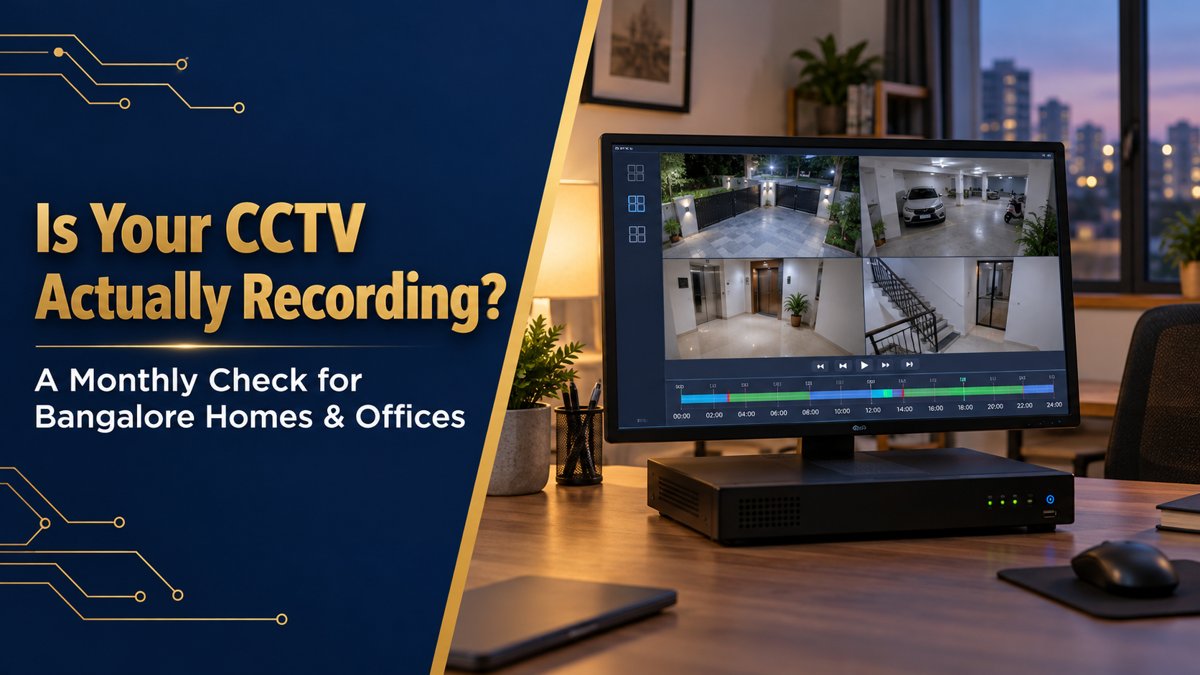
This is the most important check. Go to the playback section of your recorder or app and choose a time from two or three days ago. Do this for each camera, one by one.
- Does a clip play for every camera?
- Is the picture clear, or is it blurred, dark or washed out?
- Are there gaps in the timeline where nothing was saved?
- Does the time shown on the video match the real time of day?
If one camera has no recording, note its name and location. Do not wait for the next month to raise it.
Check 2: the date and time
Footage with the wrong date or time is hard to use. Check the clock on the recorder and compare it with your phone. If you are off by more than a minute or two, correct it. Some systems can sync their time automatically, and your installer can tell you whether yours does. If the power has been cut recently, the clock may have reset, so check it after any long outage.
Check 3: storage and retention
Recorders save video on a hard disk or memory card. When the disk fills up, it either overwrites the oldest footage or stops recording, depending on its settings. Look for these things:
- Disk status. The recorder usually shows whether the disk is detected and healthy. A warning here needs attention straight away.
- Oldest recording. Find the earliest date that you can still play back. This tells you how many days of footage you really have.
- Overwrite setting. Check that the recorder is set to overwrite old footage, so that it keeps recording when full.
- Recording mode. Check whether cameras record all the time or only when motion is detected, and whether that suits your needs.
If the number of days you keep is shorter than you want, ask your installer about a larger disk or different recording settings. The right size depends on the number of cameras, the picture quality and how long you want to keep footage.
Check 4: the cameras themselves
Walk around the property and look at each camera. You do not need tools for this.
- Lens. Look for dust, water marks, cobwebs or insects. A dirty lens can blur the picture. Clean it gently with a soft, dry cloth if you can reach it safely.
- Angle. Check that the camera still points where it should. Wind, vibration or a knock can shift it.
- Housing and mount. Check for loose screws, cracks or water getting inside.
- Night view. In the evening, look at the night picture. Spider webs and bright lights near the lens can cause glare.
- Obstructions. Plants, new signboards or parked vehicles can block the view over time.
Check 5: cables, connectors and power
Many camera problems come from the cable or the power supply, not the camera. Look at what you can see without opening anything.
- Cables should not be hanging loose, rubbing on sharp edges or exposed to the sun and rain.
- Outdoor connectors should be inside a weatherproof box or sealed properly.
- The recorder and the power supply should be in a ventilated place, not in a closed cupboard where heat builds up.
- If you use a UPS or backup power, check that it is switched on and that its indicator shows normal.
If you see damaged cables or signs of water, do not try to repair them yourself. Ask a technician to check them.
Check 6: remote access and passwords
If you view your cameras on a phone, check that the remote connection still works from outside your home network, for example on mobile data. Also review security:
- Use strong, unique passwords for the recorder and the app.
- Remove access for people who no longer need it, such as former staff or tenants.
- Keep the recorder and app updated, as advised by your installer or the manufacturer.
- Do not share the login in group chats.
Check 7: test an alert, if you use alerts
If your system sends notifications for motion or other events, test one. Walk in front of a camera and see whether you receive the alert, and how quickly. If you get no alerts, or far too many, the settings may need adjusting. Ask your installer to review the zones and sensitivity.
A simple monthly checklist
- Play back footage from 2 to 3 days ago on every camera.
- Compare the recorder's date and time with your phone.
- Check the disk status and the oldest recording available.
- Look at each lens, angle and mount.
- Look at the cables, connectors and power supply.
- Test remote viewing on mobile data.
- Review who has access and update passwords if needed.
- Test one alert, if you use them.
- Write down the date and any issues you found.
What to do if you find a problem
Write down the camera name, what you saw and when. Take a photo or a screenshot if you can. Then contact your installer or your maintenance provider with those details. A clear description helps them find the cause faster. If there is no regular maintenance in place, a service contract can be useful. A good one lists what is checked, how often, and how quickly a visit is arranged. You can read about this in our guide to what a good CCTV AMC contract includes.
How often should you check?
Once a month is a sensible habit for most homes. For offices, shops, schools and apartments, where footage matters more, many people check more often, or ask their provider to do it. After a power cut, a storm, a network change or any work on the premises, a quick check is a good idea.
Common questions
How do I know if my CCTV is recording?
Play back footage from a past time on each camera. If the clip plays with the right date and time, the recorder saved it.
Why does my camera show live video but have no recording?
Possible causes include a full or faulty disk, a recording schedule that is switched off, a connection problem between the camera and the recorder, or a setting that records only on motion. A technician can check which applies.
How many days of footage should I keep?
It depends on your needs and your storage. Many people want a few weeks. Ask your installer to size the storage to the number of days you want. You can also read our CCTV installation page for how we plan storage.
Should I clean the camera lens?
If you can reach it safely, a soft, dry cloth is usually enough. Avoid harsh chemicals. For cameras at height, ask a technician.
What if my recorder's time is wrong?
Correct it in the recorder's settings and check it again after a power cut. Ask your installer whether automatic time sync can be turned on.
Do I need a maintenance contract?
It is not compulsory, but it helps if you do not want to do regular checks yourself, or if your system is large.
Can I do these checks myself?
Yes, most of them. The playback, date and time, and visual checks need no tools. For anything involving cables, power or settings you are unsure about, ask a technician.
Next step
If you are not sure that your system is recording properly, you can book a free site survey with Prazision Tech. An engineer can look at your cameras, recorder, storage and power, and tell you in writing what needs attention.